A new camera in the driver app
Take several proof photos in a row, use the flash, and add them all to the stop with one tap.

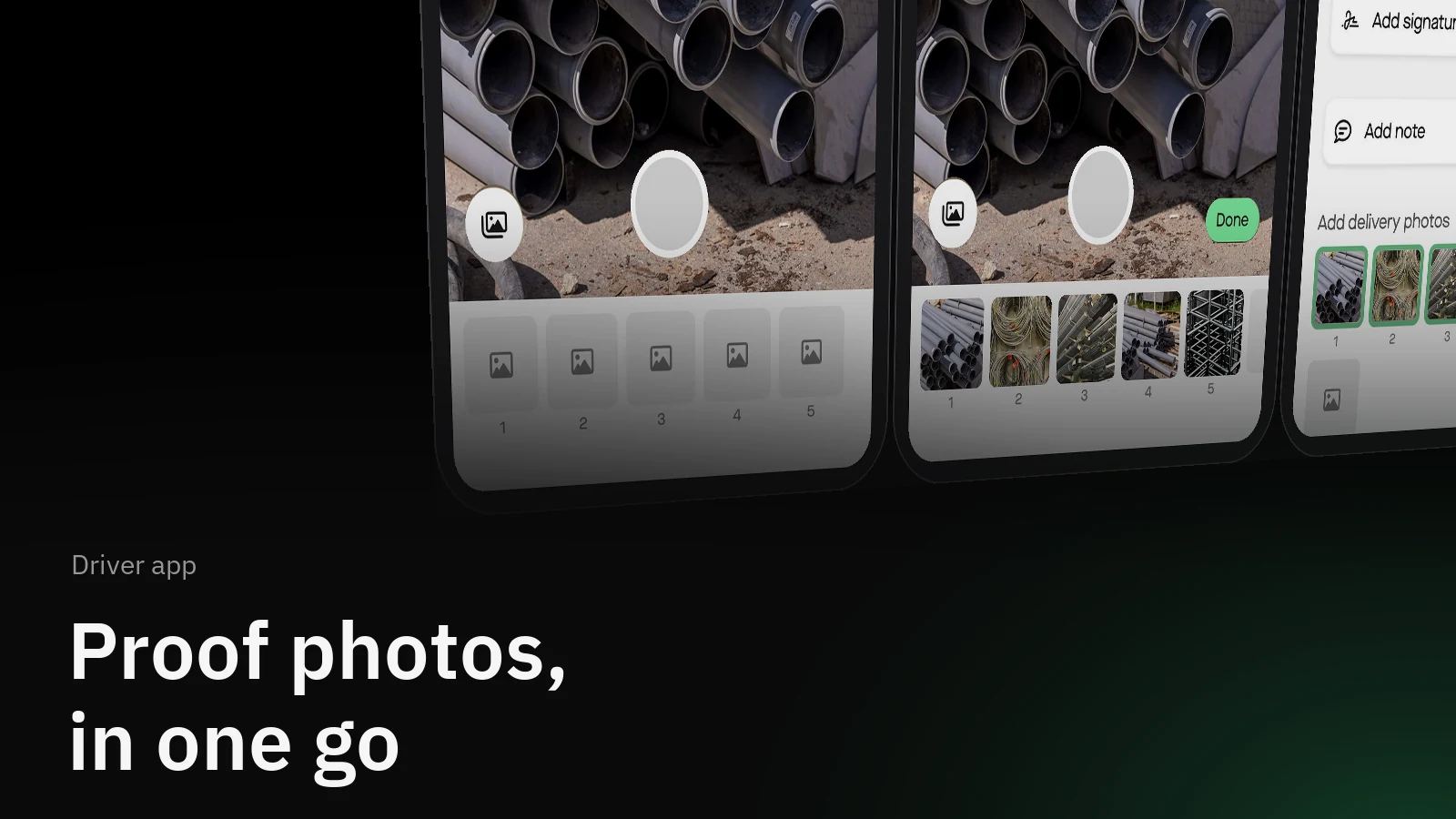
Proof of delivery is rarely one photo. There is the pallet, the label, the doorway where it was left. The driver app now has its own camera built for that: open it once, take every photo you need, and tap Done.
How it helps
A driver's day is a long run of stops, and the photo step is in every one of them. The new camera keeps the whole thing in one place. The shutter, the flash, the front camera and the photos taken so far are all on one screen, so a driver can shoot the pallet, the label and the doorway in a few seconds and get back to the tour.
How it works
At a stop, tap one of the photo slots under Add delivery photos.

The camera opens. Tap the shutter for each photo. Every photo lands in the strip at the bottom, numbered, and the camera stays open for the next one. Flash and the front camera are in the top corner, and the photo button on the left opens the phone's gallery if the pictures already exist.
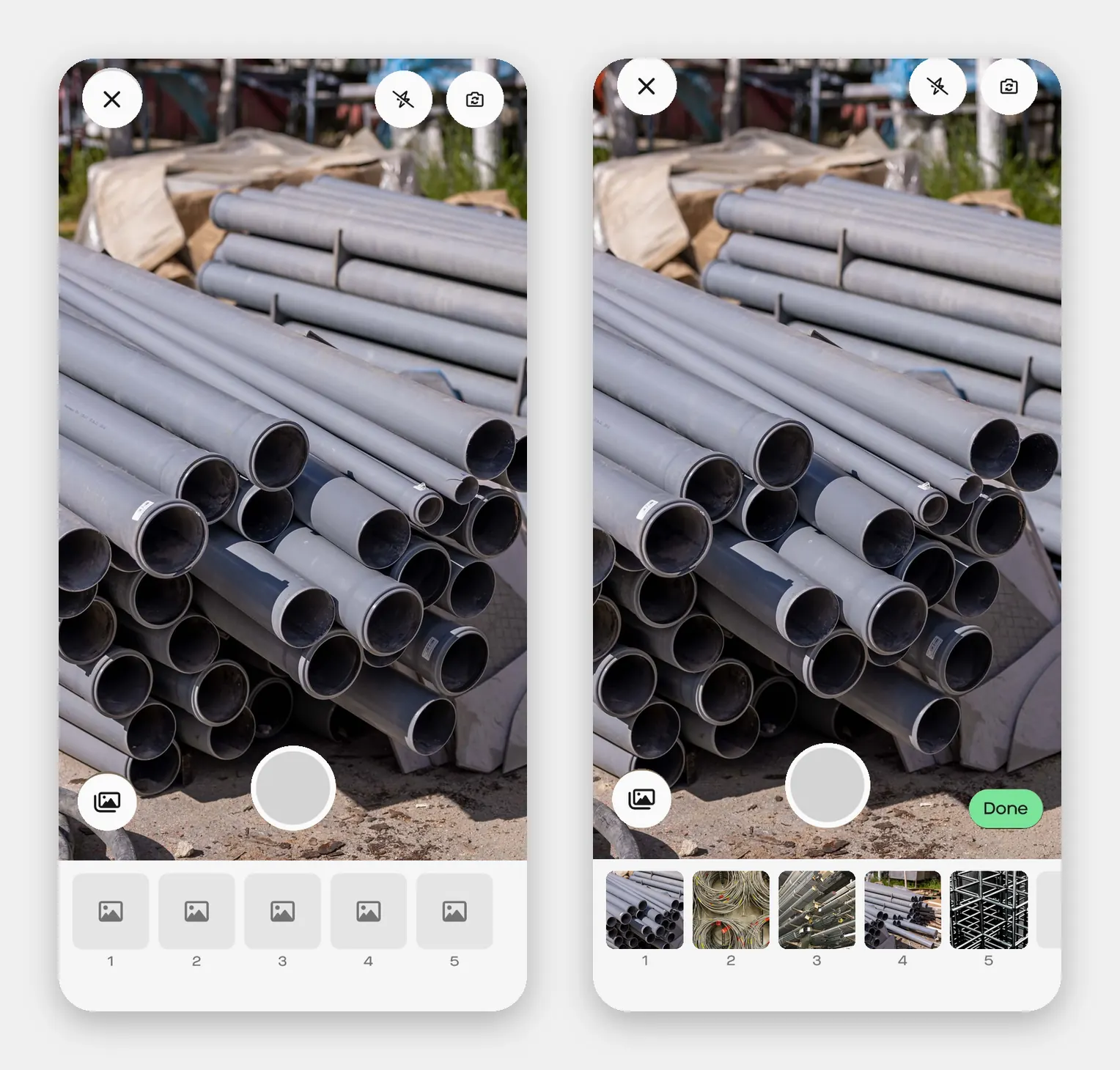
Tap Done. The photos are added to the stop, and the next free slot is ready in case you need one more.
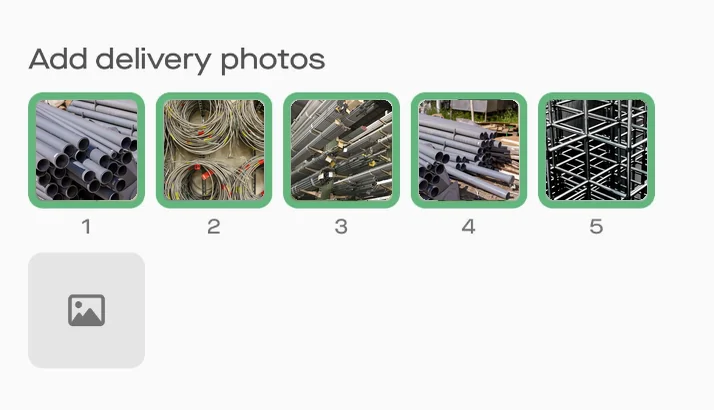
A closer look
Tap a photo in the strip to look at it or remove it before you tap Done. If you close the camera with photos still in the strip, the app asks before it discards them. From the gallery you can pick several photos at once, and they join the strip like any other.
Get started
- In the driver app, open a stop and go to the proof of delivery step.
- Tap a photo slot, take your photos, and tap Done.
The new camera is in the current Alrik driver app on iOS and Android. Update the app if you do not see it.