Column widths and wrapping
Drag any column in Cockpit to the width you need, and let long text wrap instead of being cut off.

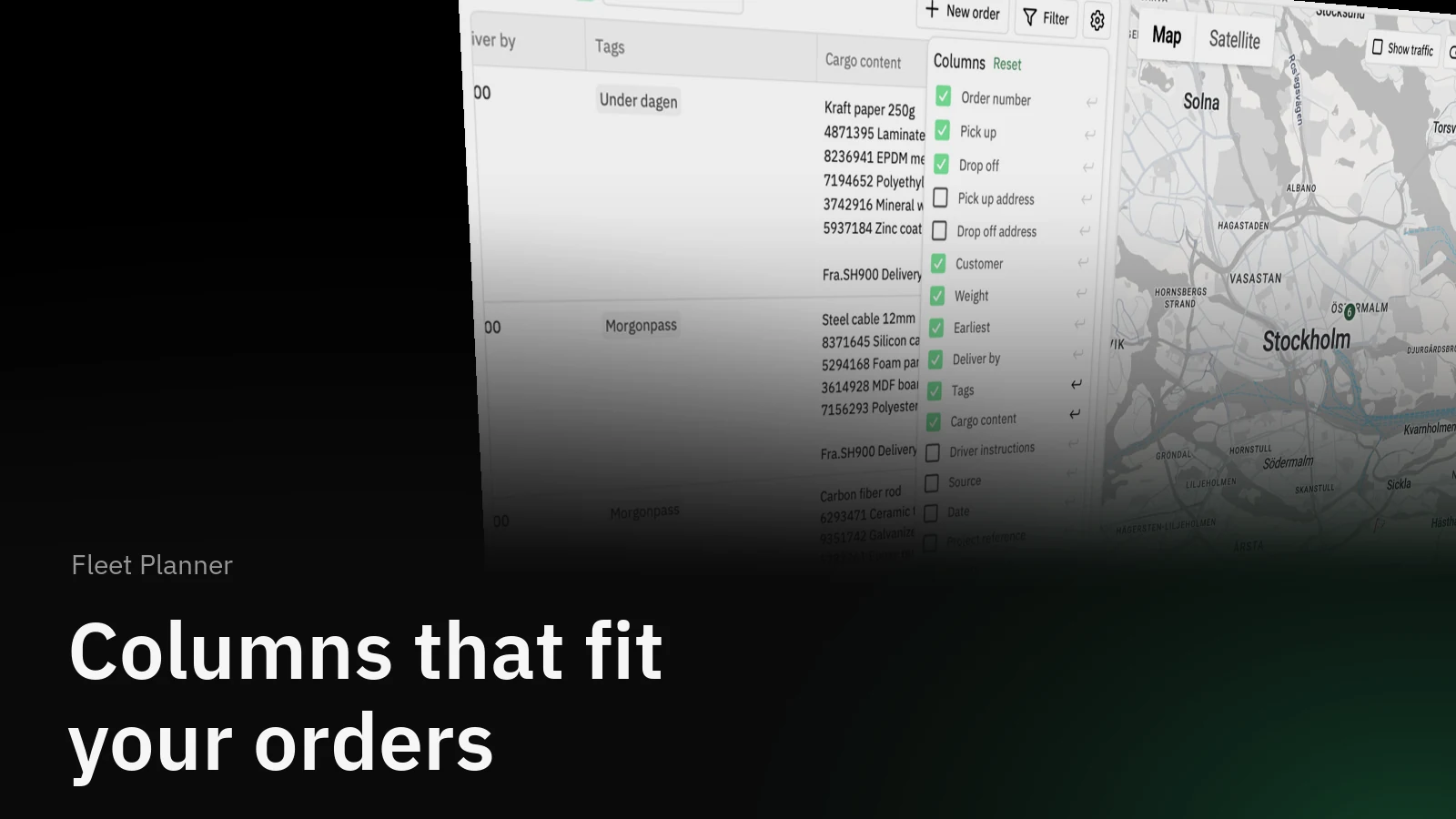
Cargo content, driver instructions and addresses rarely fit in one line. Now you decide how wide each column in Cockpit is, and which columns wrap so the whole text is visible without opening the order.
How it helps
Every branch reads its order table differently. One cares about cargo lines, another about delivery windows, a third about tags. Until now the columns had fixed widths, so long text ended in an ellipsis and you opened each order to read the rest. With your own column widths and wrapping, the table shows what you look at most, at the size you need.
How it works
Point at the right edge of a column header and drag it. The column follows, and the width is kept the next time you open Cockpit. Double-click the edge to reset it.
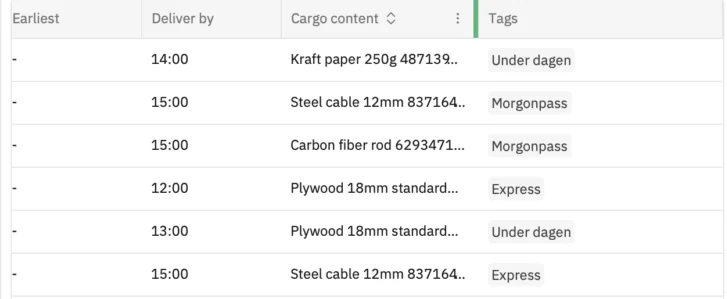
To wrap a column, open the column settings from the cog next to Filter. Each column has a wrap toggle on the right. Switch it on and the text breaks over as many lines as it needs, with the row growing to fit.
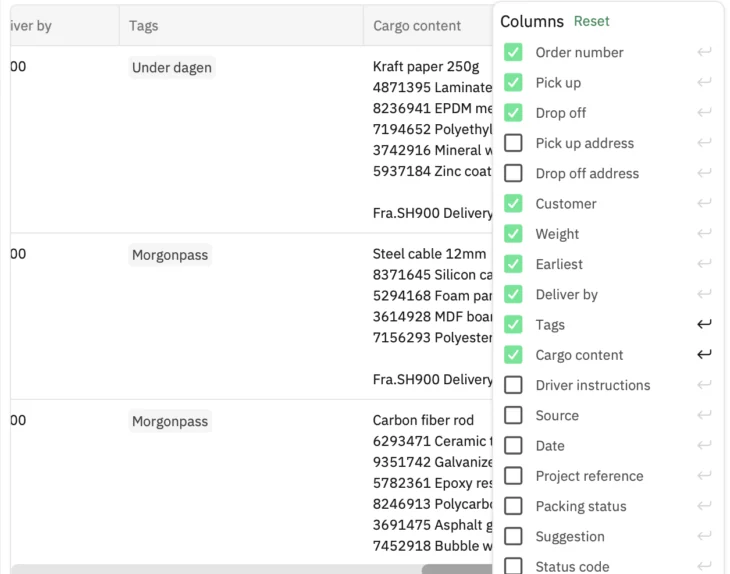
Tags wrap from the start, so a long list of tags no longer hides behind the column edge.
A closer look
Widths and wrapping are saved per browser, so each planner can set up the table their own way. They are also part of a saved layout in Cockpit 2.0 (beta), together with the filter and the columns you show, so a shared layout gives the whole branch the same table.
Column order works as before: open the column's ⋮ menu and use Move to shift it left or right.
Get started
- In Cockpit, drag the edge of a column header to the width you want.
- Open the cog next to Filter and switch on the wrap toggle for the columns with long text.
- Use Reset in the same menu to go back to the defaults.
Column widths and wrapping are available to everyone who uses Fleet Planner.