Capacity Calendar
See how full every delivery window is this week, and what your fleet can still take on.

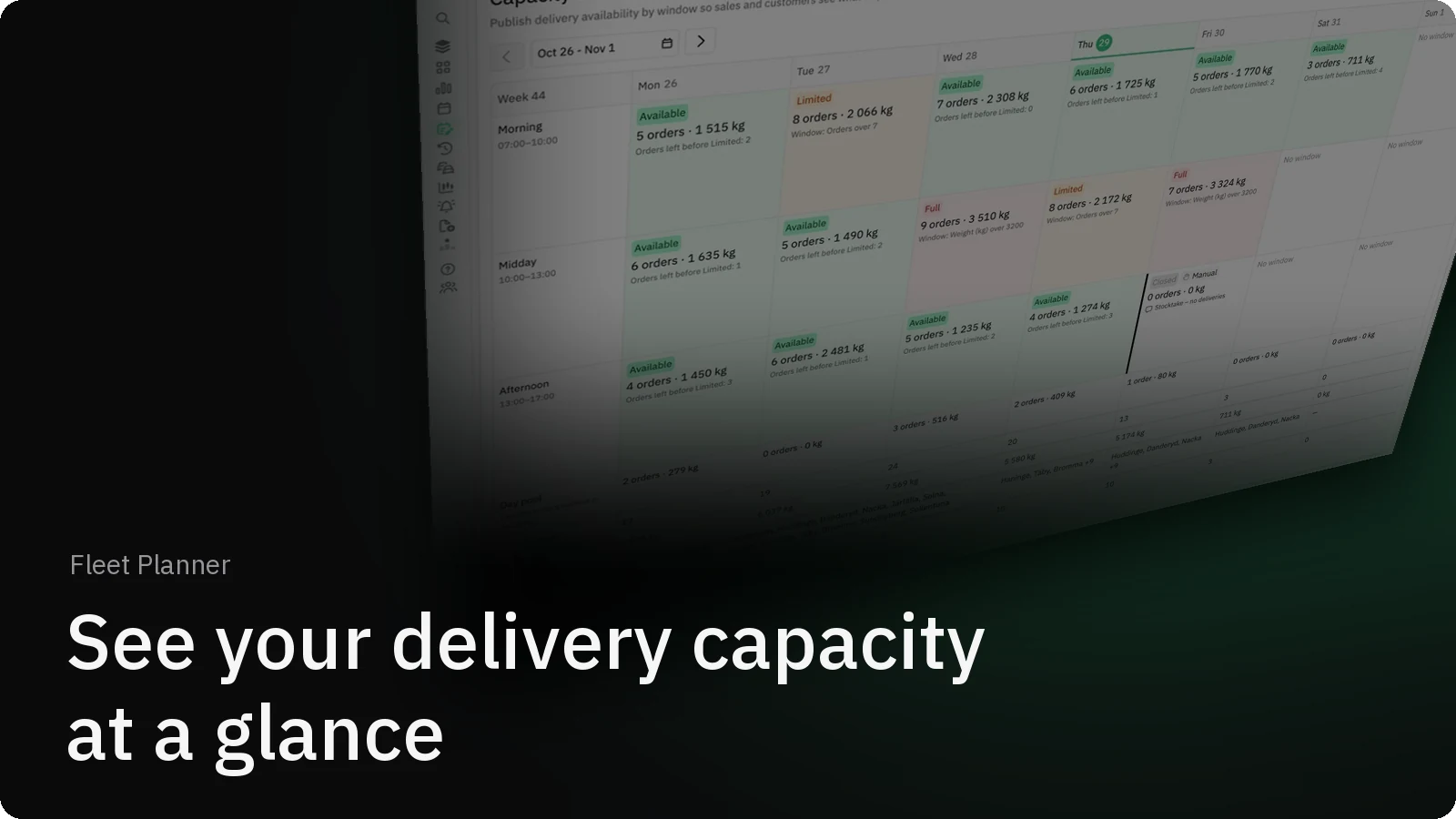
Can we still deliver on Tuesday morning? With Capacity Calendar, everyone who uses Fleet Planner can answer that at a glance.
How it helps
Before offering a delivery slot, sales and customer service need to know whether the fleet can still take it. That answer lived with the planners, so the quickest way to get it was to ask one.
Capacity Calendar publishes it instead. Each window's status updates as orders come in, so sales and customer service can see what is still open without asking, and planners can get on with planning.
How it works
You decide what "full" means:
- Under Windows, add your delivery windows and the days they run.
- Under Rules, set when a window turns Limited or Full, for example after a number of orders or a total weight.
As orders come in, Capacity Calendar counts them against your rules and updates each window's status by itself. When you know something the rules don't, such as a stocktake or a vehicle off the road, click a cell to set the status by hand and leave a note.
A closer look
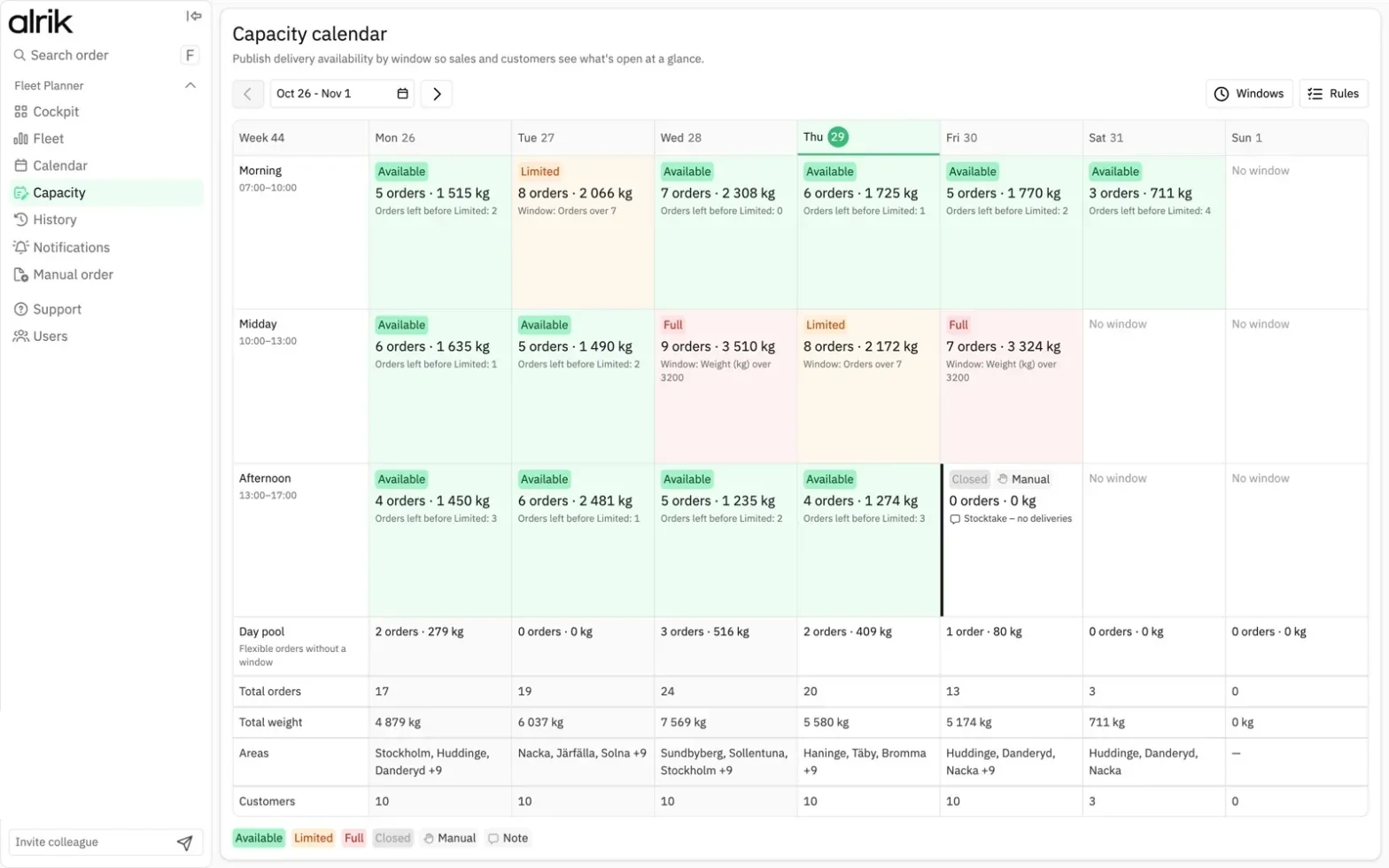
Each row is a delivery window, such as Morning 07:00–10:00, and each column is a day of the week. Every cell shows:
- A status: Available Limited Full or Closed
- The number of orders and their total weight.
- How much is left before the next status, or the rule that set the status.
- Manual and a note when someone has set the status by hand.
"No window" means the window isn't open that day. The rows at the bottom stay in view while you scroll:
- Day pool: flexible orders that have a date but no window.
- Total orders and Total weight for the whole day.
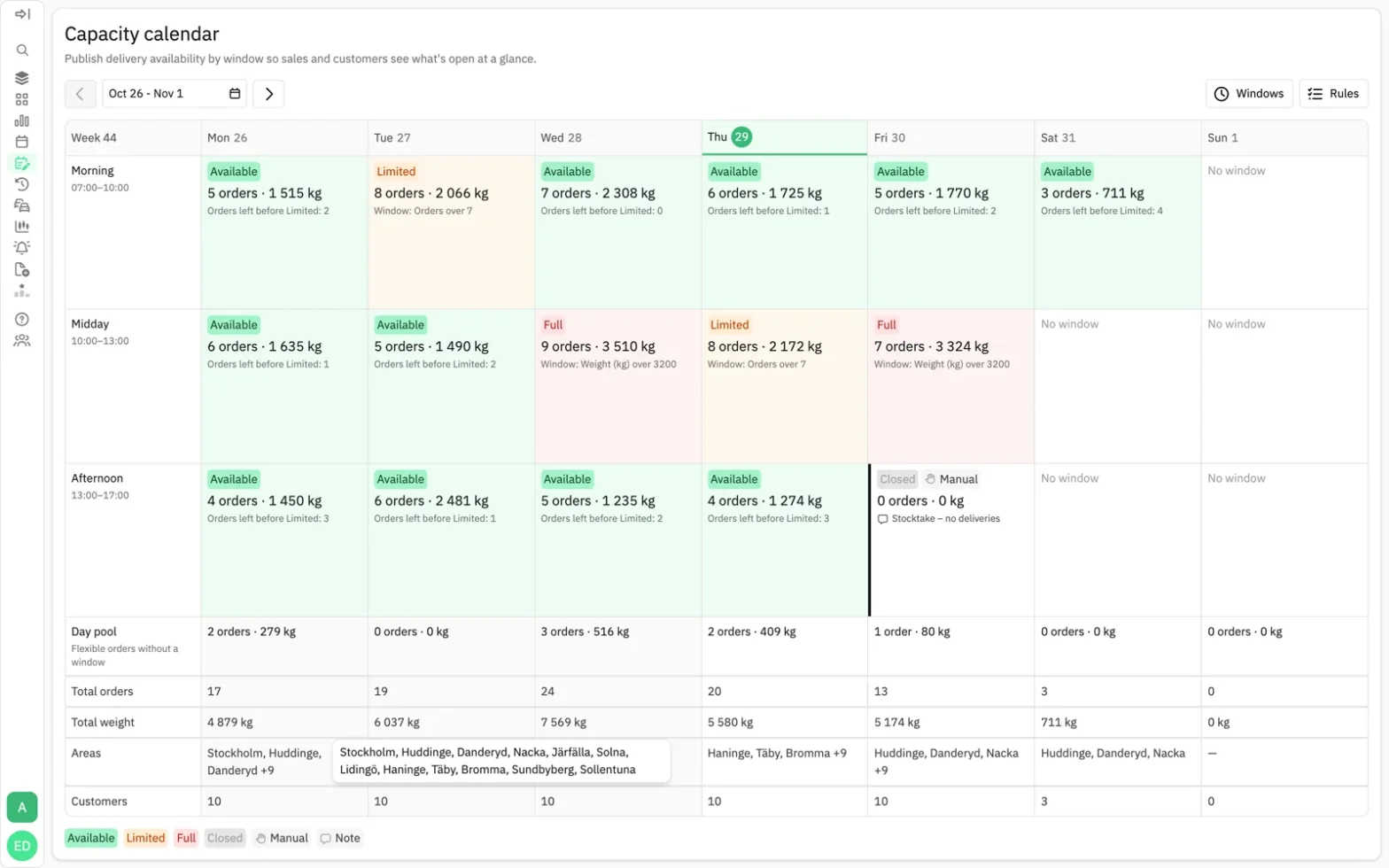
- Areas: the places the day's deliveries go. When there are more than three, hover over the list to see them all.
- Customers: how many different customers receive deliveries that day.
Get started
-
Open Fleet Planner → Capacity in the sidebar.
-
Use the week number, the date span and the highlighted today to find your place. Step between weeks with the arrows.

-
Hover over an area list to see every area that day.
You see Capacity Calendar if you have access to Fleet Planner and your location plans its own fleet.