Saved filters
Save the filters you use every day, pin them as tabs above the order table, and share them with your branches.

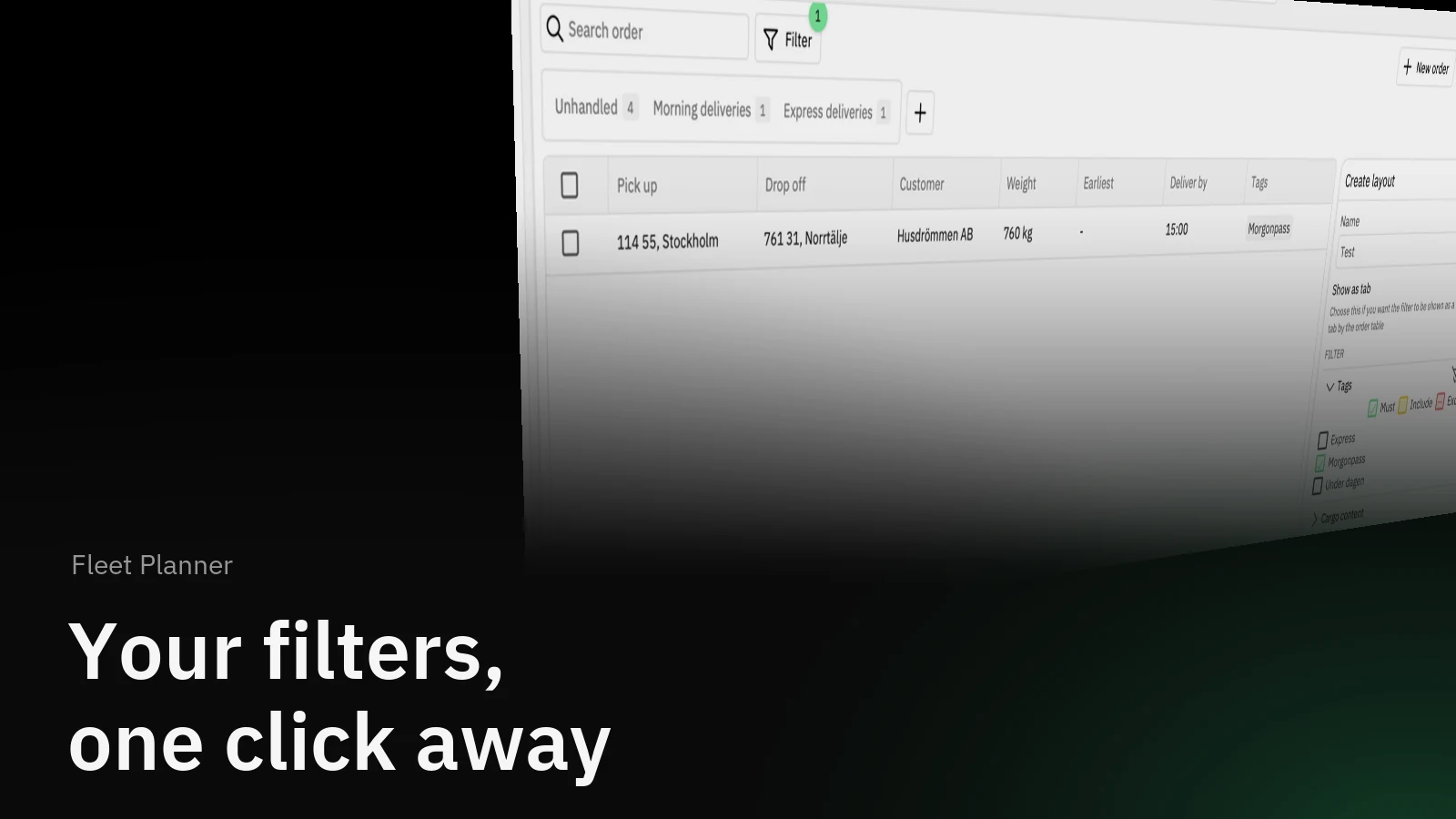
Every planner has a few filters they set up again each morning: today's express orders, everything over two tonnes, the Norrtälje run. Saved filters keep them, and put them one click away as tabs above the order table.
How it helps
A filter used to be something you rebuilt every time you needed it. Now you set it up once, give it a name, and it stays — for you, or for everyone at your branch. Pin the ones you use most as tabs and the order table opens straight to the orders you are after, with a live count of how many match right now.
How it works
In Cockpit, open Filter and set it up the way you want: tags, cargo, weight, pickup or dropoff area, zip code, time window. Choose Save current as preset and give it a name.
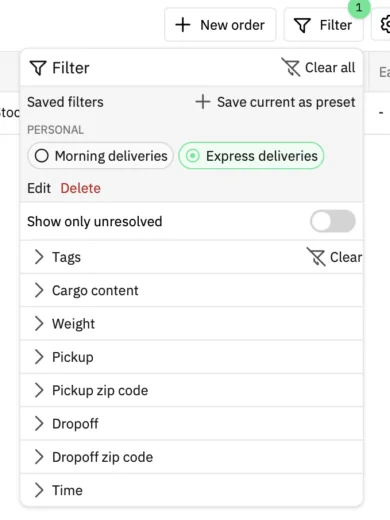
Switch on Show as tab and the filter appears next to Unhandled above the order table. Each tab shows how many orders match.
Share with your branches
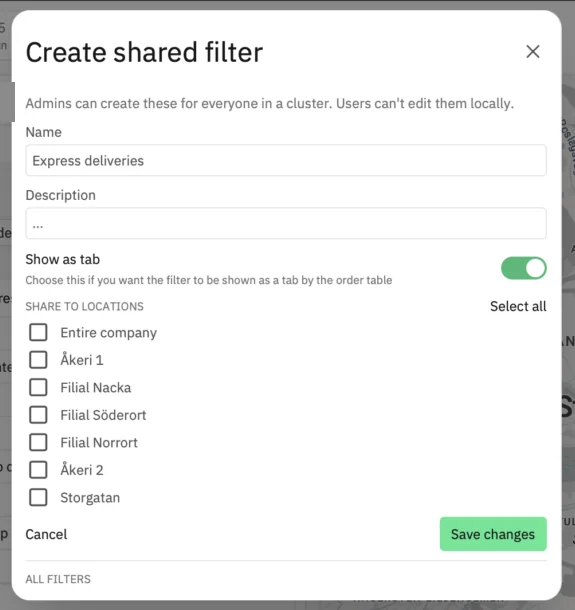
Admins can create shared filters for the entire company or for specific branches. Everyone there sees the same tabs, and only admins can change them. Your personal filters stay yours.
A closer look
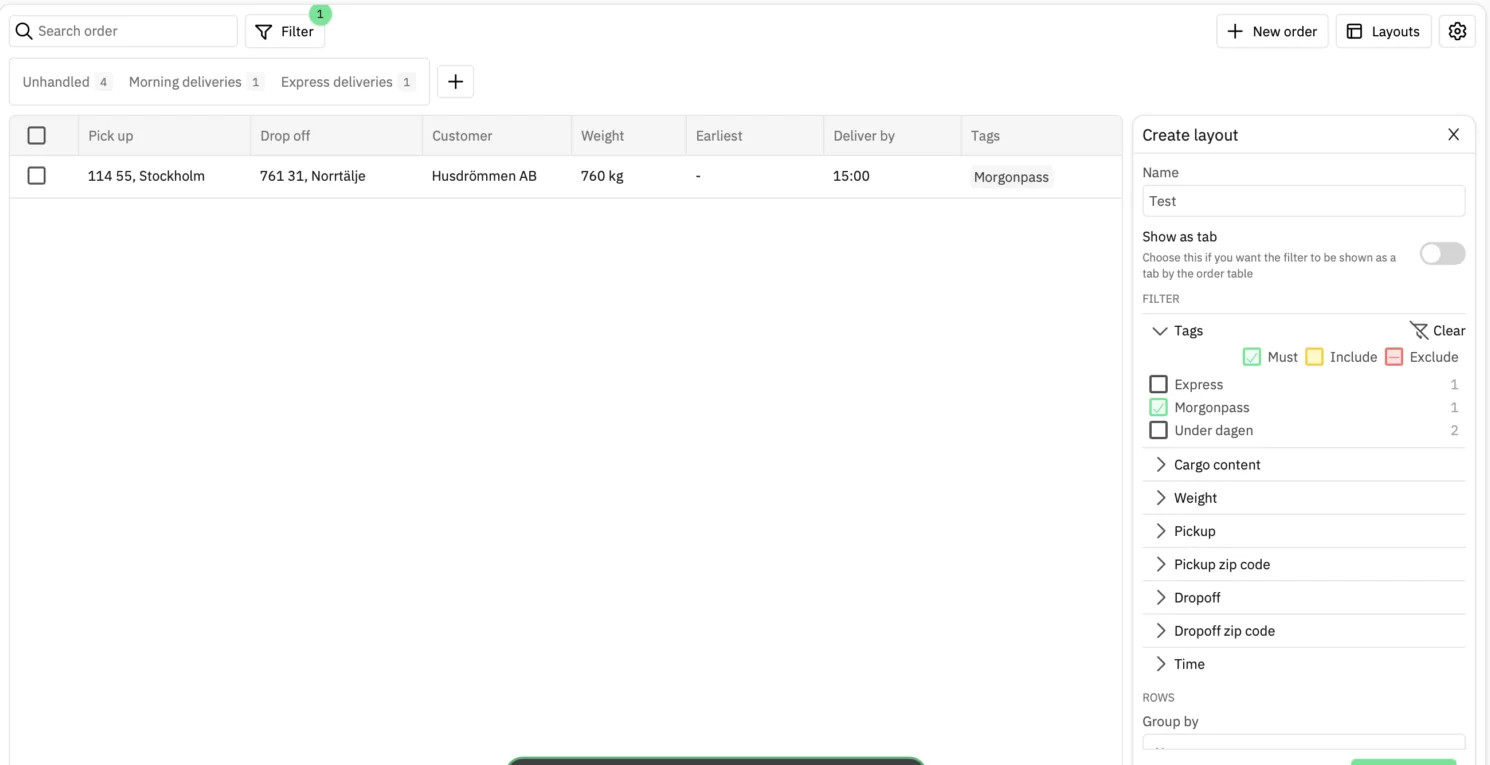
In Cockpit 2.0 (beta), saved filters are called layouts, and they save more than the filter: the columns you show and how rows are grouped. Open Layouts to switch between them, edit one or create a new one. Tabs work the same way.
Get started
- Open Fleet Planner → Cockpit and set up a filter you use often.
- Choose Save current as preset, name it, and switch on Show as tab.
- To share it, pick the branches it should appear for — or the entire company.
Saved filters are available to everyone who uses Fleet Planner. Shared filters need admin access.